1 Introduction
This document highlights some major changes and enhancements developed for the new Easy Access Property Sales Version 6.0 system (EAPS) . Apart from some minor improvements and changes to the look and feel of the systems, major new feature added are Rental Records and a Dashboard facility providing reporting on data through charts/graphs.
Additional Address/Property Details
At the time of writing, there are no concrete plans by the Lands Department to supply additional/new information in the near future, and have been for some time. Therefore, some of the fields on the search and property details screens remain de-activated. As with the previous version of EAPS, on the search and property details screen these fields are marked "Future implementation".
2 Look and Feel
There is a bit of a different ‘look and feel’ to the new EAPS version. It is mainly the Main Menu that received a refresher as we didn’t want existing users to have to re-learn the system.
The new Main Menu:

3 Rental Records
You can now import and search on Rental Data. The process is similar to the Sales Data: Import the Rental Dataset from a csv spread sheet. You purchase the dataset by annual subscription and it will be submitted to you on a monthly basis.
Import Rental Data:

Action: browse to the csv file, select it and click the Import Now button. The system imports rental records established during the month and establishes a link to the sales record of the matching property, where applicable.
Search Rental Data:

Action: enter any combination of search criteria and click the Search Now button.
Search results:

Action: all records matching the search criteria provided are listed. Click on the View button to open the Rental Property Details window. As with the Sales Data, you can sort the search result list by clicking the column headers: one click for ascending sort order, double click for descending sort order.
Rental Property Details:

Action: View or print the details displayed, or view the property location on Google Map. Click on the Sales Details button to view all Sales records for the same property (if any).
Sales Details of current Rental Property:

Action: View details as displayed. Click on a row in the list box to view details of selected sales event for the current property.
Reports:
Following rental property reports are available:
Property Rental History:

Action: View details as displayed. Click on a row in the list box to view details of selected sales event for the current property.
Reports:
Following rental property reports are available:
Property Rental History:

Rental property history details of a Sales Property:

4 Dashboard
The Dashboard is a completely new feature. It facilitates interrogation of Sales and Rental records based on a number of filter criteria.
The Dashboard

Here is a brief description of the Dashboard functionality:
Filter Criteria
Transactions
Sales: includes all past property sales records
Rentals: includes all past property rental agreements
Region
NT: includes the entire Northern Territory, including the Alice Springs region
Alice Springs: includes the Alice Springs region only
Note: Rental records do not have Region information recorded against them therefore, the choice of Region is immaterial.
Property Type
Houses: only records of Property Type ‘House’ are included
Units: only records of Property Type ‘Unit’ are included
Combined: records of Property Type ‘Unit’ and ‘House’ are included and combined and shown as one column
Separate: this option only shows when ‘Combined’ is selected. When ticked, records of Property Type ‘Unit’ and ‘House’ are included but shown as separate columns
Time Period
Monthly: values are summed monthly, with maximum 12 columns shown. You can select any 1 to 12 months period
Quarterly: values are summed into quarterly columns. You can select a maximum of 15 quarters
Yearly: values are summed into yearly columns. You can select a maximum of 5 years
Fin-Year: this option only shows when ‘Yearly’ is selected. When ticked, the Month option automatically filters from July to June the following year. You can select up to 5 financial years.
Locations/Suburbs
Select Location: when ticked, you can select up to 10 locations to be included in the resulting chart
Filter Suburbs: when ticked, you can filter the list of Suburbs that belong to the selected Location (you can select any number of locations). The locations selected are not included in the resulting chart
Select Suburbs: when ticked, you can select up to 10 Suburbs to be included in the resulting chart
Clear: clears the related list box (Locations or Suburbs) of all selections and filters
Note: if no Location or Suburb is selected, the resulting chart includes records for the selected Region – NT or Alice Springs for Sales transactions and NT for Rental records
Function
Sale Price: sale prices are summed and shown for selected criteria
Count: sales or rentals numbers are counted for selected criteria
Value
Actual: when ticked actual sale price or rent is used
Median: when ticked, median sale price and rent is calculated and shown
Other Functions
Chart Type Selection of a number of chart types
Create Chart validates the criteria selections made and processes the resulting Chart
Chart Title creates and shows the Chart Title, describing the current Chart based on a n umber of criteria selections. The Title can be changed/overwritten
Chart Data lists all records included in the resulting Chart based on the criteria selection made. It allows removal of single records that may distort the created Chart
Refresh Chart re-creates the current Chart based on the selected transactions in the Chart Data list

Export to Excel outputs the current Chart to a new worksheet, including the pivot table on which the Chart is based
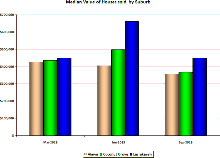
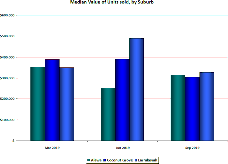
Graphs/Charts:
A number of chart types are available (some are shown here):